


Goal
For the initial use of Klara, you top up credit via the payment provider Stripe. You can conveniently download the invoice as a PDF under Payments in the Klara dashboard.
Requirements:
You are registered and can log in to the Klara dashboard.
You have a valid credit card.
1. Make Payment
Log in to your Klara dashboard with your credentials.
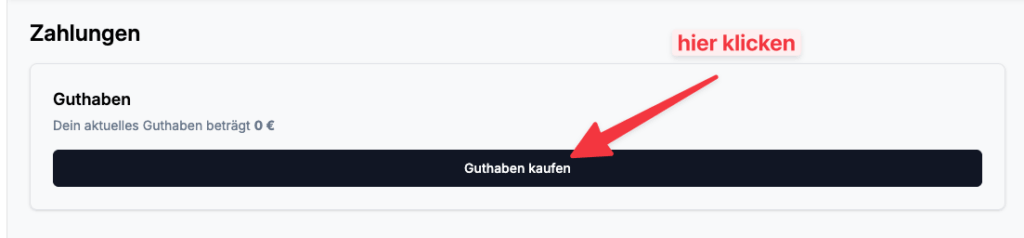
Go to Admin → Payments.
Click the Buy Credit button.
Select the desired amount (minimum €50).Enter your credit card details in the Stripe checkout process.
Follow Stripe’s payment instructions to complete the transaction.
2. Download Invoices
After completing the payment, your invoice will be displayed at the bottom of the same window.
Click Download under Invoice PDF.

Frequently Asked Questions (FAQ)
Is payment via Stripe secure?
– Yes. Stripe is a global leading payment provider that uses state-of-the-art security standards. The payment process is encrypted and processed securely, ensuring your data is protected.
What is the minimum top-up amount?
– The minimum top-up amount is €50.
What information is shown during the payment process?
– The payment window clearly displays all relevant invoice details.
Will I receive a confirmation of my payment?
– Yes. After completing the payment, you will automatically receive a confirmation email with all relevant information.
Troubleshooting & Support
If you experience issues topping up or completing the payment via Stripe, proceed as follows:
Check your internet connection.
Ensure the minimum amount of €50 has been entered.
Reload the page and restart the payment process.
Verify that all invoice details are displayed correctly.
Check your email inbox (including the spam folder) for the confirmation email.
If the problem persists, please contact our support team via email.