


Goal
You will receive an overview of all candidates who have applied for a job and are managed in Recruitee.
Requirements:
You are registered and able to log in to the Klara dashboard.
Recruitee is successfully connected to the Klara dashboard.
1. View Candidates
Log in to your Klara dashboard with your credentials.
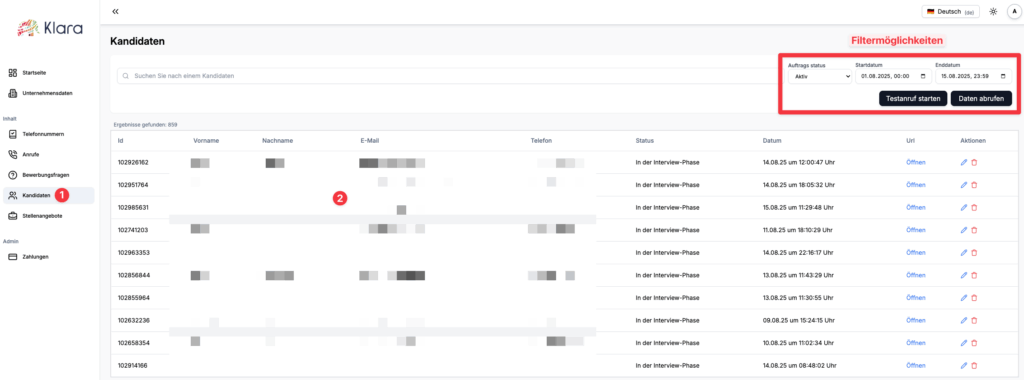
Click on Content → Candidates.
At the top right of the page, you can filter by the desired period (start and end date) as well as by the candidate’s status.
In addition, you can start a test call to try out the Klara voice you have selected.
2. Candidate View
In the candidate view, you can see the candidate’s ID, first name, last name, email address, and phone number. This information is imported from Recruitee.
Under “Status”, you will see the phase the candidate is currently in. Candidates will only be contacted by Klara once they are in the “Interview Phase.”
By clicking on “URL,” you can access the candidate profile in Recruitee and be redirected directly to Recruitee.
Under “Actions,” you can remove the candidate from the Klara dashboard (trash bin icon) or edit the candidate (pencil icon).

Frequently Asked Questions (FAQ)
How can I quickly find a specific candidate?
– Use the search bar in the dashboard and enter the candidate’s name.
Can I distinguish between active and inactive jobs?
– Yes. With the filter function, you can specifically show or hide active and inactive jobs.
How can I see the status of a candidate?
– The status indicates whether the candidate is currently in the interview phase or has already been classified as qualified.
How can I adjust the time frame for calls?
– In the dashboard, you can individually set the time frame for scheduled calls to optimally organize your workdays.
Can I perform a test call?
– Yes. With the “Start Test Call” function, you can check your connection in advance and ensure everything runs smoothly.
Troubleshooting & Support
If you encounter issues with topping up or completing a payment via Stripe, please proceed as follows:
Check your internet connection.
A stable connection is required for the dashboard to load correctly.Refresh the page.
Reload the dashboard and try the desired action again.Verify filter and search settings.
Ensure that no unintended filters are active that might hide candidates or jobs.Check the call time frame.
Make sure the set time frame for scheduled calls is configured correctly.Run a test call.
This ensures that your connection and devices are functioning properly.Clear cache and cookies.
If issues persist, please clear your browser’s cache and cookies.Contact support.
If the problem remains unresolved, please contact our support team via email.