


Goal
You can customize the application questions in Klara to obtain more precise information from applicants.
Requirements:
You are registered and able to log in to the Klara dashboard.
You have access to the “Application Questions” feature.
1. Create Application Questions
Open the Application Questions section in the Klara dashboard.
Review the existing questions (currently, 29 standard questions are available).
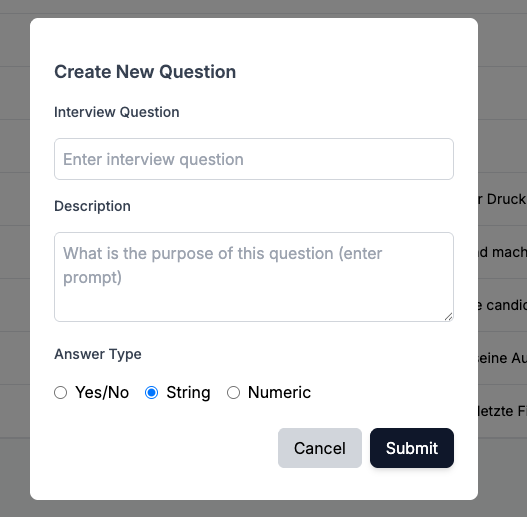
Click on Add Question to create a new application question.
Select the appropriate answer type (e.g., Yes/No, text, numeric input such as a date).
Adjust the answer description to provide clear instructions for applicants.
Edit or delete existing questions if needed.
Save your changes.
Frequently Asked Questions (FAQ)
Can I customize the application questions in Klara?
– Yes. You can modify existing questions, add new ones, or delete those no longer needed.
How many questions are available by default?
– Currently, 29 general questions are defined, for example regarding place of residence or age.
How do I add a new question?
– In the Klara dashboard, go to the Application Questions section, click Add Question, and select the appropriate answer type.
Which answer types are available?
– You can choose from different types, such as text field, multiple choice, or date.
Can I customize the description of answers?
– Yes. You can adjust descriptions individually to provide clearer guidance to applicants.
Do existing questions need to be updated?
– Yes, you should regularly review the predefined questions and adapt them to your current requirements.
Who can see the changes to the questions?
– Applicants will see your updated questions directly during the application process.
Troubleshooting & Support
If you experience issues with topping up or completing a payment via Stripe, proceed as follows:
- Verify that you are logged into the Klara dashboard.
- Ensure you have the necessary permissions to edit application questions.
- Refresh the page and reopen the Application Questions section.
- Check that all inputs (question, answer type, description) are fully completed.
- Save your changes again and confirm they are displayed in the dashboard.
- Test the inputs in a sample application to ensure they are correctly applied.
- If the issue persists, please contact our support team via email.